GLB packages a glTF scene and binary resources into one file, which makes it convenient for browser delivery and asset handoff. It does not guarantee that every Blender feature will survive export: game-ready results depend on the subset supported by glTF and the importer that receives it.
If your source mesh is AI-generated, inspect its topology and materials first. The structural modeling guide covers the checks that should happen before a rig is added.
Quick read
Key takeaways
- Apply transforms and confirm units, origin, and forward direction before rigging.
- Test skin weights with extreme poses before polishing clips.
- Organize Actions or NLA tracks intentionally so the exporter creates the clips you expect.
- Open the exported GLB in an independent viewer and in the target runtime.
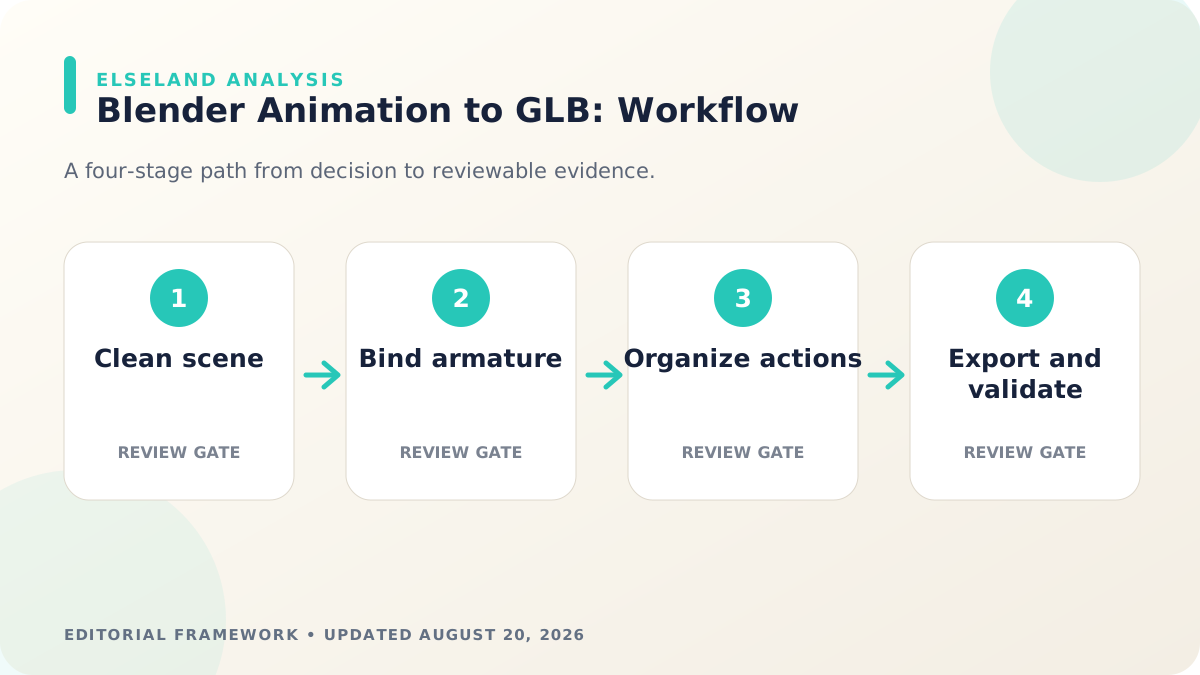
1. Clean the Blender Scene
Set scale, apply rotation and scale, remove hidden duplicates, name the mesh and armature, and place the origin deliberately. Convert curves or procedural objects to supported mesh data when required by the intended export.
Use materials based on Principled BSDF channels that map cleanly to glTF. Bake unsupported procedural detail into textures instead of assuming another runtime will reproduce Blender's shader graph.
2. Build and Bind the Armature
Create a bone hierarchy with one clear root strategy. Align joints to deformation landmarks, parent the mesh, and generate or paint weights. Test shoulders, hips, knees, elbows, wrists, and any flexible accessories.
Limit and normalize bone influences according to the destination's expectations. The Blender exporter warns that unusual influence counts may display incorrectly in some viewers.
3. Create and Organize Animation Actions
Animate object transforms, pose bones, or shape keys that glTF supports. Give each intended clip a clear Action or NLA organization, then verify the frame range, loop seam, and root behavior.
Bake constraints or procedural control into exported bone animation when needed. Physics, light, and many material-property animations are not exported as ordinary glTF animation channels.
4. Export a GLB With Intentional Settings
- Choose glTF Binary (.glb).
- Export only the selected or intended scene objects.
- Include skinning and the animation mode that matches your Action/NLA setup.
- Review material, image, deformation-bone, influence, and sampling settings.
- Use compression only when the target runtime supports the chosen extension.
5. Validate Outside Blender
Open the GLB in an independent glTF viewer, inspect its validation report, then import it into the target engine or browser renderer. Check scale, orientation, materials, bone deformation, clip names, loop seams, and missing textures.
For web delivery, measure the final animated asset inside a production-shaped scene and continue with Elseland's browser 3D optimization checklist.
Worked Example: Export Idle, Walk, and Attack in One GLB
Create three named Blender Actions on one armature and verify each action in the intended bind pose. Decide whether the project exports Actions directly or uses NLA tracks; do not mix organizational methods without understanding how the installed exporter maps them to glTF animations.
Export a minimal test with one mesh, one armature, and the three clips before adding props or complex materials. Open the GLB in the Khronos validator and an independent viewer, then import it into the destination runtime. Record the final animation names because engine code should not depend on an accidental exporter label.
| Blender item | GLB expectation | Validation |
|---|---|---|
| Armature | One clear skin and root strategy | Hierarchy and inverse bind matrices |
| Action/NLA | Three intended animation clips | Names, ranges, loop behavior |
| Principled material | Supported metallic-roughness channels | Neutral-light visual comparison |
| Images | Embedded or referenced as intended | No missing textures |
| Transforms | Correct scale and orientation | Independent viewer and engine import |
Use a Minimal Export Ladder
Export complexity in layers: static mesh, material, skin, one animation, all animations, then optional compression and extensions. Validate each rung. When the full asset fails, the last successful rung narrows the cause.
Keep export presets under team control and record the Blender version. The current exporter supports many glTF features, but option names and Action handling can change across releases. A screenshot or machine-readable preset is more reliable than verbal instructions.
- Rung 1: mesh, transforms, normals, UVs
- Rung 2: supported materials and images
- Rung 3: armature, skin, and bind pose
- Rung 4: one known-good clip
- Rung 5: all clips, events metadata, compression, and extensions
Diagnose Missing or Broken GLB Animation
If no clips appear, check Action/NLA organization, export mode, selected objects, and whether the animated property is supported. If clips appear but deform incorrectly, inspect bind pose, armature transforms, weights, bone influences, and importer mapping.
The Blender manual notes that pose bones, object transforms, and shape-key values are supported, while many physics, light, or material-property animations are not ordinary glTF animation channels. Bake or redesign unsupported behavior rather than assuming a checkbox will preserve it.
| Symptom | Likely cause | Next check |
|---|---|---|
| No animation names | Action/NLA export mode | Test one named Action |
| T-pose only | Clip missing or state not started | Inspect viewer list and runtime default state |
| Exploding mesh | Bind matrices, scale, or weights | Apply transforms and rebind test mesh |
| Extra clips | Unintended Actions or tracks included | Filter and name export set |
| Different motion in engine | Sampling, compression, or retargeting | Compare baked keys before and after import |
Animated GLB Release Checklist
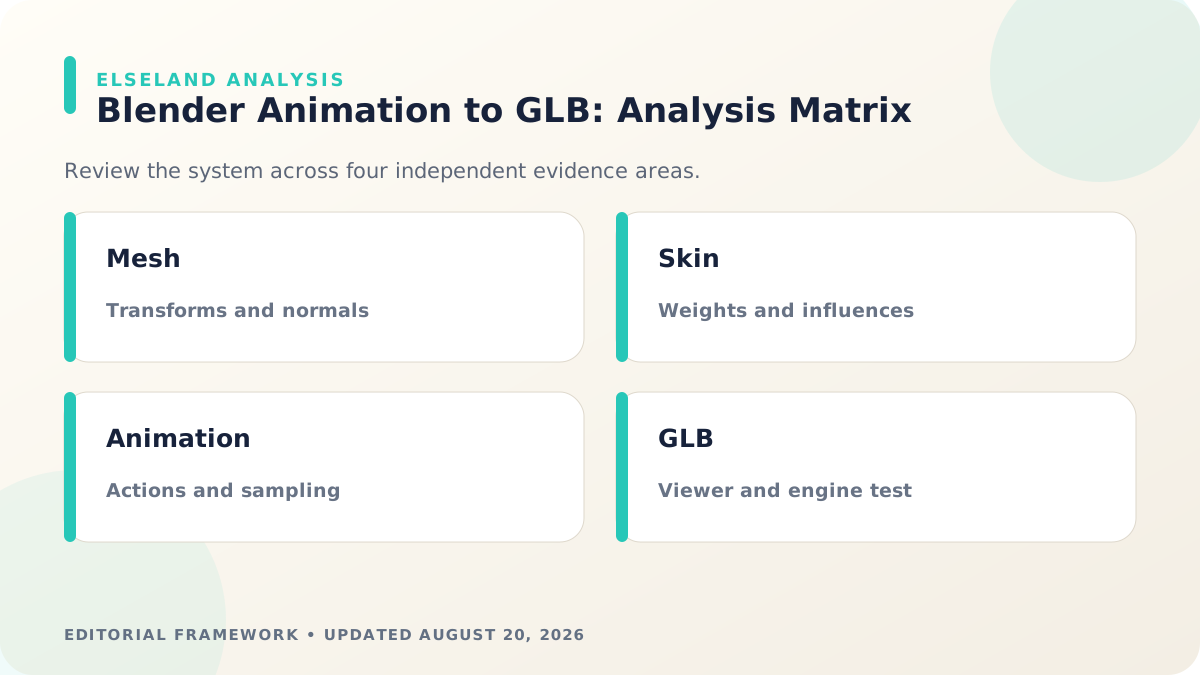
Validate both conformance and intent. A GLB can pass the format validator yet still use the wrong scale, clip names, root behavior, material look, or animation timing for the game.
Archive the production `.blend`, exported `.glb`, exporter version and settings, validation report, and a runtime capture. This evidence makes future Blender or engine upgrades safer.
- Transforms, axes, units, origins, names, and selection set are intentional.
- Materials use supported nodes or baked textures and survive neutral-light review.
- Skin weights and bone influences meet the target runtime's expectations.
- Every intended clip appears once with correct name, range, and root behavior.
- The GLB passes Khronos validation and an independent viewer test.
- The exact file is tested in the production renderer and committed with reproducible settings.
What the Primary Sources Establish About Blender Animation to GLB
Our evidence baseline starts with the Khronos glTF 2.0 specification, accessed August 20, 2026. We use it to establish documented behavior, terminology, or constraints—not to claim that the source endorses Elseland's workflow or conclusions. The practical artifact under review is a clean Blender scene, named actions, exported GLB, validator report, and independent viewer test.
That distinction is central to E-E-A-T. A first-party page can establish what a format, tool, platform, model, or game team publicly documents. It cannot prove that a particular asset is fast, accessible, legally cleared, fun, or production-ready. Those conclusions require separate observation, measurement, specialist review, or player evidence tied to the actual project.
For this topic, the decision is whether animation and materials survive the complete Blender-to-runtime path. The following observations turn the official reference into a reviewable production record rather than a decorative citation:
| Evidence layer | What it can support | What it cannot support alone |
|---|---|---|
| Official source | Documented feature, rule, format, or published design context | Project-specific quality or universal performance |
| Project measurement | Observed behavior in a named build, scene, device, or sample | Unmeasured platforms or future versions |
| Human review | Usability, visual, editorial, and production judgment | Legal certainty or population-level player behavior |
| Release record | Who approved what, when, with which evidence | Permanent compliance after inputs or rules change |
- 1. treat the exported GLB rather than the blend file as the deliverable under review. Store the result with the asset or build identifier so another reviewer can reproduce the conclusion.
- 2. check transforms, hierarchy, skin weights, and action organization before export. Store the result with the asset or build identifier so another reviewer can reproduce the conclusion.
- 3. use the normative glTF model to interpret channels and interpolation. Store the result with the asset or build identifier so another reviewer can reproduce the conclusion.
- 4. open the result in a second viewer before blaming the engine. Store the result with the asset or build identifier so another reviewer can reproduce the conclusion.
A Field Review Protocol for Blender Animation to GLB
Use this protocol after the first plausible output exists and before scaling the workflow. Keep one untouched baseline, one candidate revision, and one deliberately stressed case. The stressed case should expose the topic's likely failure mode—crowded scenes, extreme poses, small-screen play, unusual inputs, or a release-rule change—rather than merely repeat the easiest success case.
Run the review in the real delivery context whenever possible. Capture the tool or model version, source files, settings, target device or engine, date, and reviewer. If the work depends on a changing external service, record the response or exported artifact instead of assuming the same output can be recreated later.
A useful review ends with a decision and a next action. “Looks good” is not a gate. State whether the candidate passes, passes with a bounded exception, needs revision, or should be rejected; identify the evidence behind that status and the owner of the next check.
| Review status | Meaning | Required next action |
|---|---|---|
| Pass | All defined visual, technical, and release gates are supported by evidence | Freeze the reviewed artifact and link it to the build |
| Conditional pass | A known limitation is bounded and does not invalidate the intended use | Document the exception, owner, and trigger for re-review |
| Revise | The direction is viable but one or more gates remain unsupported | Change one controlled variable and repeat the affected checks |
| Reject | The candidate conflicts with the intended use, evidence, rights, safety, or budget | Preserve the record and choose a different approach |
- apply or deliberately preserve transforms and verify scale. Record the expected result before the check, then attach the observed result and any exception after it.
- remove unused data and ambiguous duplicate names. Record the expected result before the check, then attach the observed result and any exception after it.
- confirm actions, frame ranges, loop endpoints, and sampling. Record the expected result before the check, then attach the observed result and any exception after it.
- export only the intended objects, skin, materials, and animations. Record the expected result before the check, then attach the observed result and any exception after it.
- run the Khronos validator and resolve actionable errors. Record the expected result before the check, then attach the observed result and any exception after it.
- compare bind pose, clips, materials, and bounds in the target engine. Record the expected result before the check, then attach the observed result and any exception after it.
Expert Interpretation and Limits of This Game Assets & 3D Guide
The strongest conclusion this guide can support is a conditional production recommendation: use the workflow when its documented assumptions match the project, and keep the evidence needed to revisit the decision. We do not infer universal model quality, player preference, legal clearance, or performance from an official screenshot, a provider example, or a single successful asset.
Experience matters here because blender animation to glb crosses creative judgment and implementation detail. The practical review should include the people who will edit the source, integrate the result, test it in play, maintain it after release, and answer rights or policy questions. A narrow expert handoff often misses problems that appear only when those responsibilities meet.
Before publishing or shipping, repeat time-sensitive checks against the current source and exact build. Preserve dated evidence, disclose the evaluation method, and distinguish measured results from editorial inference. That record is more valuable than a confident conclusion that future reviewers cannot reproduce.
| Claim type | Editorial treatment |
|---|---|
| Documented fact | Link to Khronos glTF 2.0 specification and include the access date |
| Observed project result | Name the build, environment, sample, and method |
| Expert judgment | State the criteria, reviewer role, and tradeoff |
| Inference or forecast | Label it explicitly and describe what evidence could change it |
- Blender playback is not evidence that the GLB contains the same action data.
- Validation checks conformance, not artistic quality or engine compatibility.
- Baked sampling can increase file size while hiding source-curve intent.
- Viewer differences may come from lighting, color management, or unsupported extensions.
Frequently asked questions
Does GLB support skeletal animation?
Yes. glTF 2.0 supports skinning and animation of pose bones, object transforms, and shape key values within the exporter and runtime's supported feature set.
Why are Blender animations missing from my GLB?
Common causes include the wrong Action/NLA export mode, unselected objects, unsupported property animation, unbaked constraints, or clips that were not organized as the exporter expects.
Why does an animated GLB face the wrong direction?
Axis conversion, unapplied transforms, root-bone orientation, or importer conventions may differ. Establish forward/up conventions and test a minimal export early.
Should I use Draco compression for an animated GLB?
Only when the target loader supports it and measurements show a useful transfer-size benefit. Compression does not remove runtime skinning or draw costs.
Should Blender animations be stored as Actions or NLA tracks for GLB export?
Either can work, but the correct choice depends on the Blender exporter version and the organization needed by your project. Pick one documented convention, run a minimal export, and verify the resulting clip names before scaling the asset library.
Can a GLB contain several animation clips?
Yes. A glTF asset can contain multiple named animations. The authoring and export workflow must expose them correctly, and the runtime must choose and transition between them.
Why does a material look different after GLB export?
Only supported material information maps directly. Procedural nodes, color space, normal-map conventions, baked lighting, and renderer differences can change the result. Compare under neutral lighting and rebuild unsupported effects.
Does validator success mean the GLB is production-ready?
No. Validation checks format conformance, not artistic intent, gameplay timing, performance, scale, clip naming, or importer behavior. Treat it as one gate in a broader runtime review.
Sources and further reading
- Blender glTF 2.0 manual
Official Blender documentation for GLB/glTF meshes, materials, skinning, animation, and export settings.
- Khronos glTF 2.0 specification
Normative format specification for scenes, skins, animations, materials, and binary resources.
- Khronos glTF Validator
Official browser-based validator for checking glTF conformance.
Next step