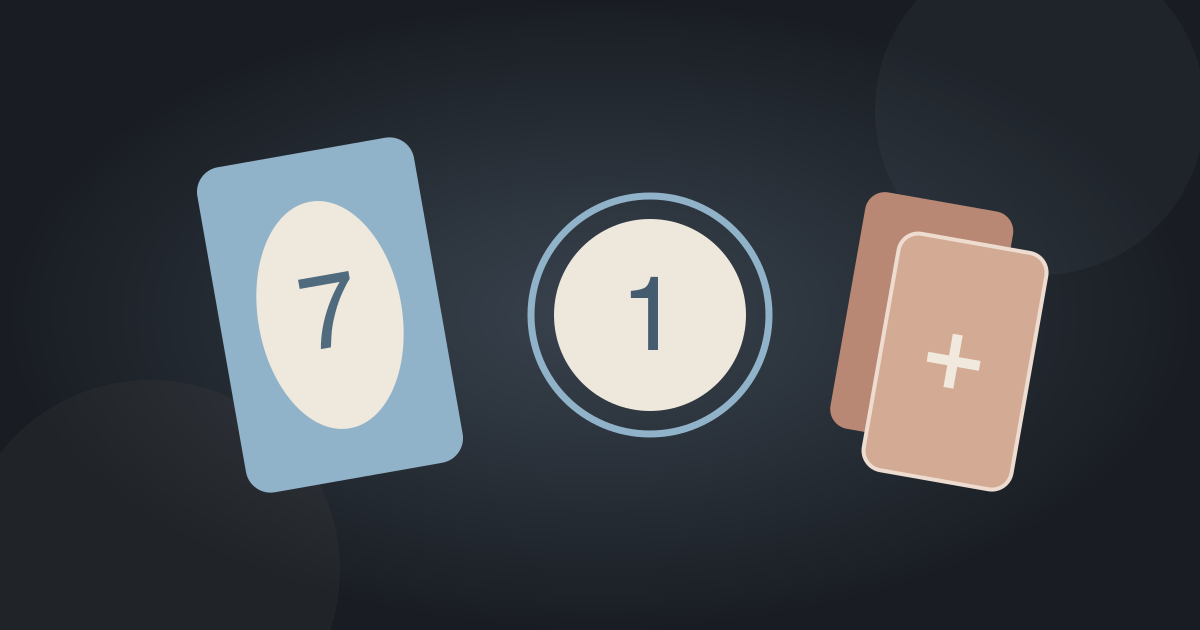
The ZAP “1” button declares that you have one card left. Press it immediately when your hand reaches one card; the published instructions say that forgetting this adds two penalty cards. The control is part of playing the endgame, not a button that automatically wins the round.
Find the ZAP “1” button before the endgame
The published ZAP controls identify “1” as the one-card declaration. Look for it early, while you can comfortably inspect the board. On a small screen, distinguish game controls from the website’s navigation and fullscreen controls.
Do not wait until a fast turn to search. Knowing where the button sits removes an avoidable attention cost; it does not imply a documented grace period. The distributor lists a landscape game, so a wider view can help you see the hand and controls together.
Use a two-action routine at the transition to one
First make the legal play that leaves one card. Then press “1” immediately once the hand reaches that state. Think “play, check count, declare,” rather than trying to remember the declaration after watching opponents.
Pressing before the hand actually reaches one is not documented as an alternative. Saying “one” aloud is also not a documented control. Use the visible button, and follow any in-game prompts if the current interface explains more detail.
What the two-card penalty does—and does not establish
Missing the declaration results in two extra cards according to the distributor’s guide. If that happens, inspect the new hand and reset your next-turn plan. A larger hand can change which ordinary color or number matches are available.
The documentation does not specify a millisecond timer, an opponent challenge button, or a way to undo the penalty. Do not repeatedly tap the declaration expecting an undocumented cancellation. Nor should every added card be diagnosed as this penalty: consider what action or prompt occurred immediately before the hand changed.
| Observation | First check | Avoid assuming |
|---|---|---|
| One card remains | Press the visible “1” control immediately | That a spoken word replaces it |
| Hand gains two cards | Whether the one-card declaration was missed | That every draw has the same cause |
| Button appears unresponsive | Hand count, current prompt, and loading state | That rapid repeated taps cancel a penalty |
Reconstruct the hand-count change before calling it a penalty
Start from the count immediately before the change. If you had one card and two penalty cards were added, the resulting count is three. If you had three cards, were blocked, and drew two unusable cards, the count could be five for a different reason. The arithmetic alone does not identify the rule event; pair it with the visible action and prompt.
A useful note is “one card remained; I did not press ‘1’; two cards were added,” rather than “the game gave me cards.” If you pressed the button but still saw an unexpected change, record that too. This is a diagnostic method, not proof that every three-card hand followed a missed declaration. Read the resulting hand before the next legal action.
Separate a rule issue from a display issue
If you cannot see the control, check whether the game has finished loading and whether browser zoom or orientation hides part of the board. Use the game’s available fullscreen view if appropriate. Avoid clearing site storage as a first step; that can remove locally saved data.
If a reload is necessary, do not assume the unfinished round will be retained. A site language switch changes the surrounding guide; it does not necessarily change the embedded game’s controls or language. Verify the current game interface rather than expecting a translated button.
Check the game surface without destroying session data
A website header button and an in-game button belong to different interfaces. Before tapping again, identify whether the control is inside the loaded game and whether a menu or overlay covers it. Check the visible hand count and current prompt. A control that is not applicable to the current state is different from a page that has not loaded.
If the board is cut off, try a comfortable browser zoom, a wider orientation, or an available fullscreen control, then inspect the same area again. These are display checks, not promised game features or a keyboard shortcut. Do not clear storage, restart the round, or reload reflexively: the guide cannot guarantee preservation of progress. Use any available in-game accessibility instructions rather than inventing a key binding.
A focused practice round
Make locating “1” the goal of the next round, then practice the transition from two cards to one. Continue to read the top card: successfully declaring still leaves the final card to play legally.
If you keep receiving a penalty, note the visible hand count, whether the control was pressed, and what the game showed afterward. That record is more useful for diagnosing the problem than assuming an exact timing threshold the published rules do not provide.
A support note that distinguishes timing from visibility
If the issue repeats, write down the device, browser, orientation, visible hand count, last legal play, whether the control was visible, whether you pressed it, and what happened next. Keep a screenshot only if it is safe to share and does not expose personal information. An observation before and after the change is more useful than an unsupported claim about milliseconds.
For the next practice round, choose one improvement: know the button’s location, keep the whole hand visible, or notice the transition from two to one. Do not change every setting at once. You are trying to separate an overlooked routine, a hidden control, and a persistent input problem—not to establish a timer that the distributor has never documented.
Next step